Your phone is always with you. But does it know who to call if you can’t speak for yourself? Setting an emergency contact number on your smartphone lock screen takes under 2 minutes. However, most people have never done it. And that one small step can make a life-or-death difference. In this guide, you’ll learn exactly how to show an emergency contact number on your smartphone — for both Android and iPhone — step by step.
📋 Table of Contents
- What Is an Emergency Contact on a Smartphone?
- Why You Must Set It Up Today
- How to Add Emergency Contact on Android
- How to Add Emergency Contact on iPhone (iOS)
- What Information Should You Add?
- Android vs iPhone: Emergency Info Comparison
- Tips to Keep Your Emergency Info Updated
- FAQs
- Conclusion
📱 What Is an Emergency Contact Number on a Smartphone?
An emergency contact on your smartphone is a name and phone number stored in your phone that can be seen — and dialed — from the lock screen.
No PIN. No password. No fingerprint needed.
Both Android and iOS let people access this key data from the lock screen without unlocking the phone. This includes emergency contact numbers and basic medical information such as blood type, allergies, or important medications.
It’s called ICE — In Case of Emergency. First responders are trained to look for it.
⚠️ Why You Must Set This Up Today
Think about this for a second: what happens if you’re in an accident and you’re unconscious? The paramedic picks up your phone. It’s locked. They have no idea who to call.
In an emergency situation, every second counts. If an ambulance picks you up unconscious or disoriented, the medical staff needs to know quickly who to call and if you have any medical conditions that might change how you are treated — severe allergies, regular medication, organ donation status, and so on.
Furthermore, it’s not just about accidents. It also helps if:
- 🔥 You have a sudden medical episode in public
- 📱 Someone finds your lost phone and wants to return it
- ⚠️ You’re in a disaster or emergency zone
- 💪 Elderly family members face a health crisis
✅ Key Takeaway: Setting up emergency contact info on your phone is one of the easiest safety steps you can take. It costs zero money and takes under 2 minutes.
⚙️ How to Add Emergency Contact on Android
Android has a built-in feature called Emergency Information. Here’s how to set it up:
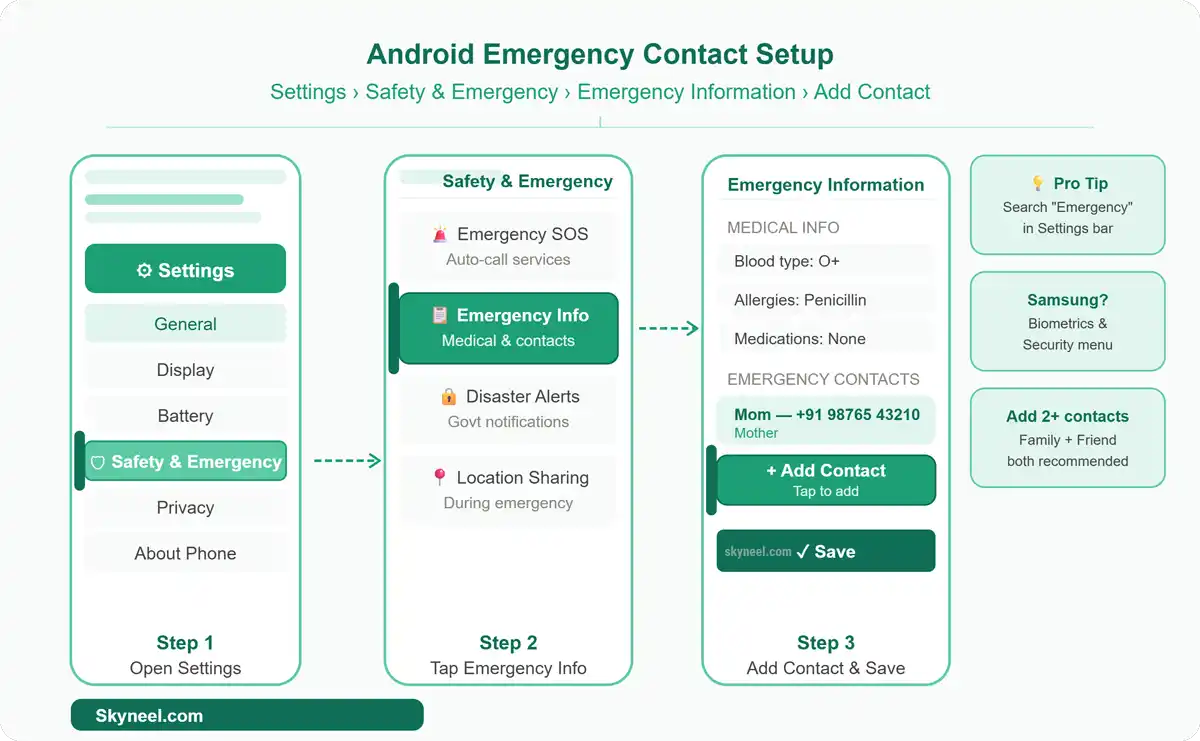
🔍 Method 1: Using Settings (Works on Most Android Phones)
- Open the Settings app on your Android phone.
- Scroll down and tap Safety & Emergency (on Samsung: Biometrics and Security > Emergency Mode).
- Tap Emergency Information.
- Tap Edit Information to add medical details.
- Scroll down and tap Add Contact.
- Select the person from your contacts list.
- Tap Save.
💡 Pro Tip: On Samsung phones, go to Settings > About Phone > Emergency Information. The path varies slightly by brand, but the feature exists on all modern Android devices.
🔍 Method 2: Via the Lock Screen Emergency Button
- Lock your phone and wake the screen.
- Tap Emergency Call at the bottom of the screen.
- Tap Emergency Information (you may need to tap it twice).
- This shows you exactly what first responders will see.
Android also lets you put any message you want on your lock screen — you can enter information like your primary emergency contact and any medical conditions directly there.
⚠️ Warning: The exact menu path changes slightly depending on your Android version and phone brand. However, search for “Emergency Information” in your Settings search bar — it works on all phones.
⚙️ How to Add Emergency Contact on iPhone (iOS)
On iPhone, everything lives inside the Health app under a feature called Medical ID.
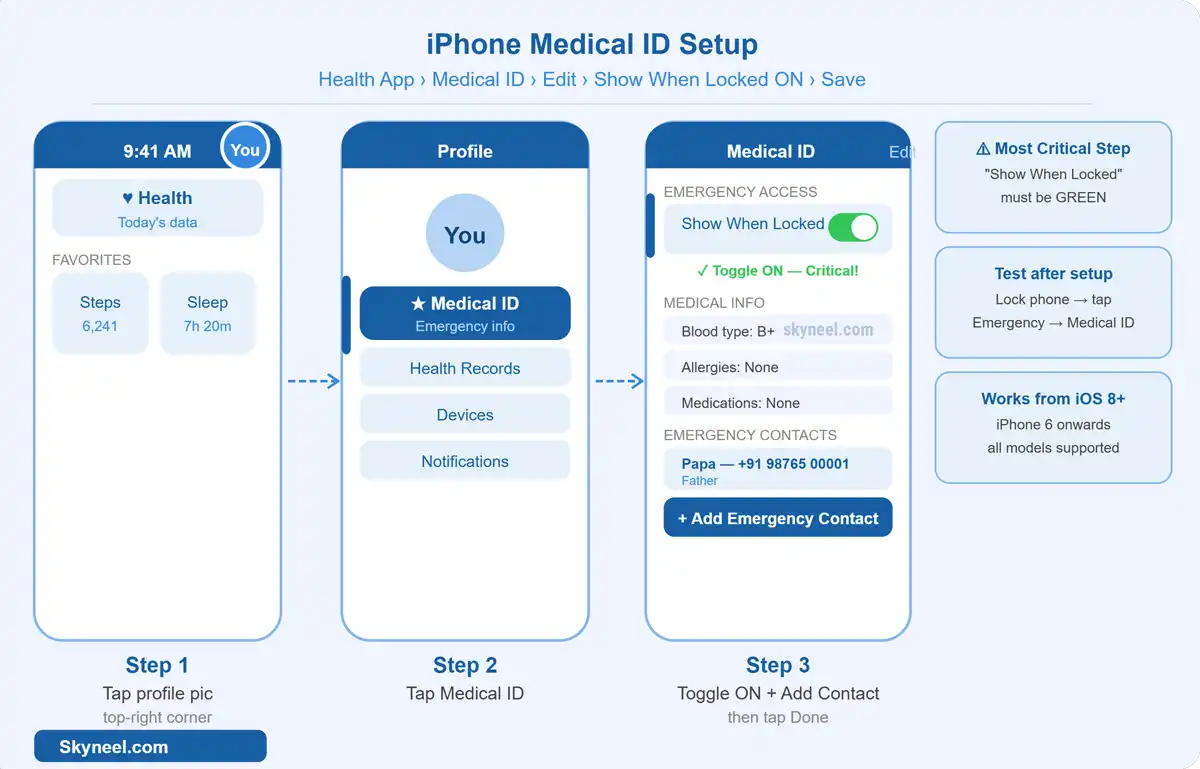
For iPhone users, the Health app is the central hub for all safety information. Once configured, this info appears when someone taps “Emergency” on your lock screen.
Here are the steps:
- Open the Health app (pre-installed on all iPhones running iOS 8 and above).
- Tap your profile picture or initials in the top-right corner.
- Select Medical ID.
- Tap Edit in the top-right corner.
- Fill in your medical conditions, allergies, medications, and blood type.
- Scroll down to Emergency Contacts and tap Add Emergency Contact.
- Choose a contact and set their relationship (e.g., Mother, Father, Spouse).
- Make sure Show When Locked is toggled ON.
- Tap Done to save.
Apple’s official guide to setting up Medical ID
💡 Pro Tip: The “Show When Locked” toggle is the most critical step. Without it, the info remains hidden behind your passcode — and defeats the whole purpose.
🔍 How to Test It on iPhone
- Lock your iPhone.
- Wake the screen and tap Emergency in the bottom corner.
- Tap Medical ID (bottom left of the SOS keypad).
- Your emergency info and contact numbers should appear.
Make sure “Show When Locked” and “Share During Emergency Call” are both toggled on — if you see green on the buttons, they’re on.
📝 What Information Should You Add?
Don’t just add a name and number. In addition, include details that could help first responders act faster. Here’s what to fill in:
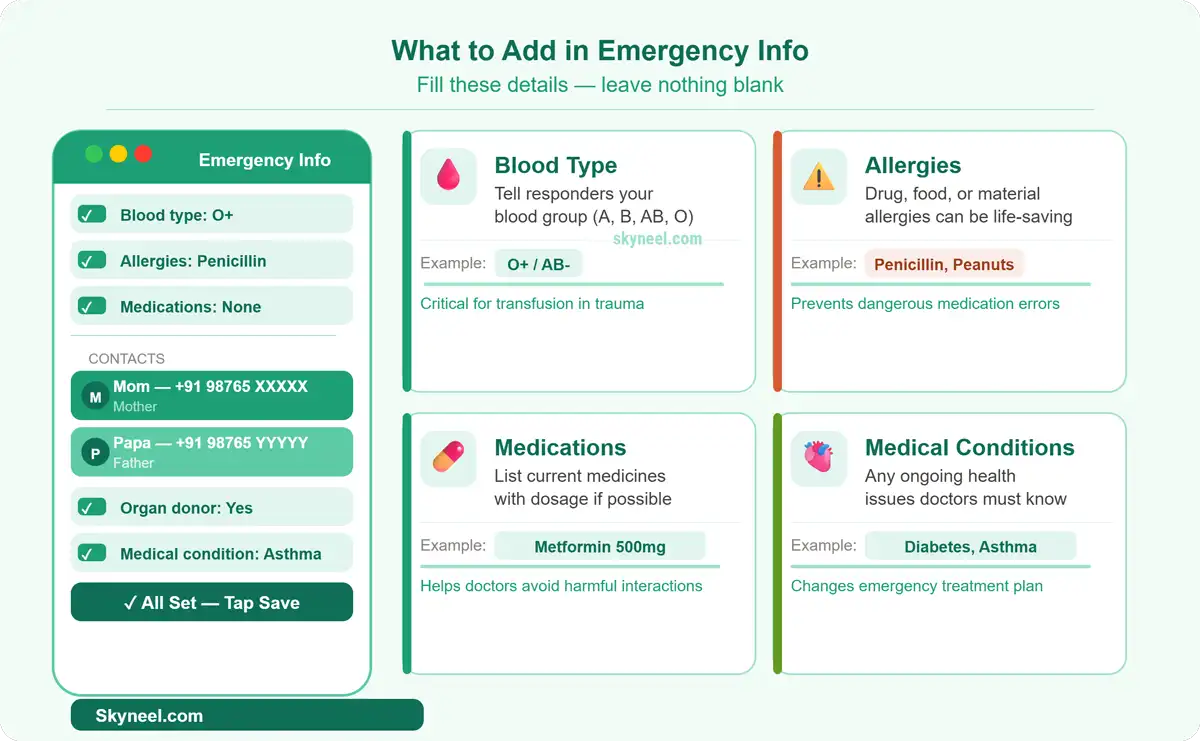
- ✅ Emergency contact name and phone number (at least 2 contacts)
- ✅ Blood type (e.g., O+, A-, B+)
- ✅ Known allergies (especially drug or food allergies)
- ✅ Current medications (include dosage if possible)
- ✅ Medical conditions (e.g., diabetes, epilepsy, heart condition)
- ✅ Organ donor status
- ✅ Doctor’s contact number (optional but helpful)
💡 Pro Tip: If there’s a section that isn’t relevant, write “N/A” or “None” instead of leaving it blank — otherwise responders may think you skipped the question.
📊 Android vs iPhone: Emergency Contact Feature Comparison
Not sure which phone handles this better? Here’s a quick side-by-side look:
| Feature | Android | iPhone (iOS) |
|---|---|---|
| Feature Name | Emergency Information | Medical ID |
| Where to Find It | Settings > Safety & Emergency | Health App > Medical ID |
| Lock Screen Access | ✅ Yes (tap Emergency) | ✅ Yes (tap Emergency > Medical ID) |
| Medical Info Support | ✅ Yes | ✅ Yes (more detailed) |
| Multiple Contacts | ✅ Yes | ✅ Yes |
| Requires Unlock | ❌ No | ❌ No |
| Works Without Internet | ✅ Yes | ✅ Yes |
| Emergency SOS Integration | ✅ Yes (varies by brand) | ✅ Yes (very seamless) |
| Customizable Lock Screen Text | ✅ Yes | ❌ Limited |
🔥 Quick Summary: Both Android and iPhone do this well. iPhone’s Medical ID is slightly more polished. Android gives you more flexibility to customize your lock screen text.
🏆 Tips to Keep Your Emergency Info Updated
Setting this up once isn’t enough. Here’s how to make sure your info stays accurate:
- 📌 Review it every 6 months — especially if your medications or health status change.
- 📌 Update it after major life events — new baby, surgery, change in address, new primary contact.
- 📌 Add at least 2 emergency contacts — one close family member and one friend.
- 📌 Tell your emergency contacts — make sure they know they’re listed.
- 📌 Set up your family members’ phones too — especially for elderly parents or young teens.
❓ FAQs — Emergency Contact on Smartphone
1. Can someone see my emergency contact without unlocking my phone?
Yes. That’s exactly the point. This data appears without unlocking the device — visible only when the lock screen is active and the user taps “Emergency.” It does not require biometric authentication, cloud syncing, or background permissions.
2. What’s the difference between Emergency SOS and Emergency Contact?
Emergency SOS automatically calls your local emergency number (like 112 or 911) when activated. An emergency contact is a personal contact — like your spouse or parent — who gets notified. Both features work together for complete safety.
💡 You might like: Process to Turn off Google’s Location Tracking feature on Android
👉 Don't miss: How to start sorting data in Excel
3. Does setting an emergency contact drain my battery?
Not at all. This configuration consumes zero battery, CPU, or network resources. It is write-once, read-never-until-needed, and persists across OS upgrades.
4. Can I add multiple emergency contacts on Android and iPhone?
Yes, both platforms support multiple contacts. It’s a good idea to add at least two — one family member and one close friend — in case the first can’t be reached.
5. What if my phone brand doesn’t have a “Safety & Emergency” option in Settings?
Most Android phones running Android 7.0 and above have this feature. However, the path varies by brand. Try searching “Emergency” in your Settings search bar — you’ll find it quickly. Alternatively, you can add a custom message directly on your lock screen as a workaround.
🎯 Conclusion: Set It Up Now — Don’t Wait
Showing an emergency contact number on your smartphone is one of the simplest, most powerful safety steps you can take today.
It takes under 2 minutes. It requires no app. And it could genuinely save your life — or someone else’s.
- ✅ On Android: Go to Settings > Safety & Emergency > Emergency Information
- ✅ On iPhone: Open Health app > Medical ID > Edit > Add Emergency Contact
Don’t forget to set this up for your parents, kids, and elderly family members too.
💡 Pro Tip: Once you’re done, share this guide with someone who hasn’t set it up yet. You might save their life without even knowing it. 🙌
If this guide helped you, drop a comment below and let us know! And check out our other phone safety and settings guides on Skyneel for more tips just like this.
✨ “This is such a helpful guide! Displaying an emergency contact number right on the smartphone screen can truly be a lifesaver. The step‑by‑step explanation makes it super easy for anyone to set up. Thanks for sharing such practical and valuable tips!” 🙌
Thanks for explaining it so clearly!
Emergency contact number smartphone lock screen par kaise dikhaye – ye guide simple aur practical hai 👍 Readers ke liye helpful content!
Thanks for appreciating 👍
Great tip 👍! Keeping an emergency contact on lock screen is super helpful.
thanks
Very helpful guide 👍 Setting an emergency contact number on smartphone lock screen is a life‑saving feature. Clear steps for both Android & iPhone users. Thanks for sharing! 📱✨
Glad you found it useful! 🙌 Yes, showing an emergency contact on the lock screen can really make a difference in critical situations. Stay tuned for more smartphone safety tips 🔒📲.
Great guide! But will this emergency number disappear if my phone updates to the latest Android version?
Hi! That’s a very valid question.
No, your emergency contact number will not disappear after an Android update. Google designs these safety features to stay intact even when your operating system upgrades to a newer version. The lock screen owner info and ICE (In Case of Emergency) details are tied directly to your user profile settings, so they are completely safe during standard system updates.
However, as a best practice, it is always a good idea to double-check your lock screen message right after a major Android version upgrade, just to ensure that the layout or settings menu hasn’t shifted.
Hope this helps! Let me know if you face any issues after your update.
thanks 👍
Welcome, 😊 Keep visiting! 👍
This is a very useful guide. 👌 Displaying a contact number on your smartphone during an emergency can be a lifesaver. I tried it on my phone, and it worked easily. Thanks, Skyneel!