Hi, you to get all Gfive Smartphone USB drivers with an easy installation guide. Gfive USB driver is an important part of all Gfive Smartphones which enable you to easily connect your Gfive android device with the PC or laptop.
What is a Gfive USB Driver?
Gfive USB Driver is an important part for all android devices which allows you to easily connect any android device or tablet through the personal computer or laptop. In other words, it is a group of more than one files or program which create a bridge between the android devices and the personal computer to communicate and sharing the files between each other. After properly connecting your android device or tablet with the personal computer via USB driver then, you will be able to do many more important things.
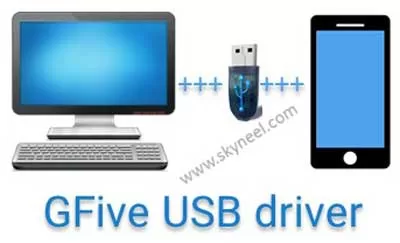
With the help of PC Suit, or any other software and installing the ROM will be you will be able to easily transfer your important & confidential data like photos, audio, video, messages, mp3, contacts, download, install & update stock ROM of any android device, update all drivers of your android devices, update your android device, take backup whole android device, and if you lost all important data from your android device then you can easily restore with the help of backup via Gfive USB drivers on your computer.
Must Read: How to send private bulk messages from WhatsApp
What is Gfive ADB Driver?
ADB stand for Android Debug Bridge. Gfive ADB driver is a client server program which is used to create the bridge between the developer and android device apart of that also create a bride between the personal computer and android device for android application development. With the help of Gfive ADB driver you will be able to give direct command through any terminal which allows you to modify and update your android device or device software by giving the command through PC command line. It is used to properly manage your Android device.
Download latest Gfive USB driver here is list:
| Gfive Model No. | Driver Download link |
|---|---|
| Gfive A1 Driver | Download |
| Gfive A68 Driver | Download |
| Gfive A90 Driver | Download |
| Gfive A770 Driver | Download |
| Gfive A800 Driver | Download |
| Gfive Aurora A79 Driver | Download |
| Gfive Bravo A2 Driver | Download |
| Gfive Bravo A5 Driver | Download |
| Gfive Bravo A77 Driver | Download |
| Gfive Bravo G95 Driver | Download |
| Gfive E100 Driver | Download |
| Gfive E610 Driver | Download |
| Gfive E660 Driver | Download |
| Gfive E670 Driver | Download |
| Gfive F7 Driver | Download |
| Gfive F500 Driver | Download |
| Gfive F600 Driver | Download |
| Gfive Ferari A78 Driver | Download |
| Gfive G10 Octacore Driver | Download |
| Gfive G 3D Driver | Download |
| Gfive G366 Driver | Download |
| Gfive G610 Driver | Download |
| Gfive G-Haptic Plus A77 Driver | Download |
| Gfive Glory Neo I88 Driver | Download |
| Gfive Glory A86 Driver | Download |
| Gfive GPad Mini Driver | Download |
| Gfive GPad 101 Driver | Download |
| Gfive GPad 201 Driver | Download |
| Gfive GPad 2 Driver | Download |
| Gfive GPad III Driver | Download |
| Gfive Gpower3 Driver | Download |
| Gfive Gpower5 Driver | Download |
| Gfive LTE 1 Driver | Download |
| Gfive L3 Driver | Download |
| Gfive 4G LTE 2 Driver | Download |
| Gfive 4G LTE 3 Driver | Download |
| Gfive President A76 Driver | Download |
| Gfive President A97 Driver | Download |
| Gfive President Classic 9 Driver | Download |
| Gfive President G Note 3 Driver | Download |
| Gfive President G6 Driver | Download |
| Gfive President G6C Driver | Download |
| Gfive President G6 Plus Driver | Download |
| Gfive President G7 Driver | Download |
| Gfive President G8 Driver | Download |
| Gfive President G9 Driver | Download |
| Gfive President G9 Pro Driver | Download |
| Gfive President G9 4G Driver | Download |
| Gfive President G9T Driver | Download |
| Gfive President G10 Driver | Download |
| Gfive President G10 Mini Driver | Download |
| Gfive President G10 Fashion Driver | Download |
| Gfive President G10 Life Driver | Download |
| Gfive President LTE 1 Driver | Download |
| Gfive President LTE 2 Driver | Download |
| Gfive President LTE 3 Driver | Download |
| Gfive President Shark 1 Driver | Download |
| Gfive President Shark 2 Driver | Download |
| Gfive President Shark 3 Driver | Download |
| Gfive President Smart 1 Driver | Download |
| Gfive President Smart 2 Driver | Download |
| Gfive President Smart 5 Driver | Download |
| Gfive President Smart 6 Driver | Download |
| Gfive President Tango 7 Driver | Download |
| Gfive Venus G73 3G Driver | Download |
| Gfive xHero3 Driver | Download |
| Gfive xHero7 Driver | Download |
How to install Gfive USB and ADB driver?
There are two ways from which you can easily download Gfive USB driver on your personal computer or laptop through the Exe file or by Driver file (Manually) method.
Method 1: How to install Gfive USB and ADB driver via Exe file:
Download and extract the zip file on your computer and connect your phone, then double click on this file to run that exe file now click on the Next > Next > Finish button. It is very simple process, there is no need to add extra efforts.
Method 2: How to install Gfive USB driver via driver files (Manually):
These driver files don’t have any kind of executable files so, you must need to install Gfive USB drivers using manual method. The installation process of Gfive USB driver via driver files is given below, follow all steps carefully:
Step 1: Download and extract the zip file on your computer then connect your android smartphone via Gfive USB cable to your personal computer or laptop.
Step 2: Click on the Start button or you can also press WIN key to directly active start menu then either you have to right click on the “Computer” option or you can also press Shift+F10 key to open the cascading menu and choose “Manage” option. Click on the “Device Manager” option in the Computer Management dialog box. Now you can see your mobile name or number with yellow triangle icon in the right side pan. That means android device is properly not installed on your computer or laptop.
💡 You might like: How to lookup images in Excel using Index Match function
👉 Don't miss: How to resolved battery drain problem after updating OS (Rom)
Step 3: Press right mouse button which has yellow triangle option then you have to click on Update Driver Software option > Click on the “Browse my computer for driver software” option > Select the folder by clicking on the Browse… button now, you will get complete path of USB driver software file then click on the Next button > Now, your USB driver updating process will be start. After successfully finish the USB driver updating process, finally click on the close button.
Must Read: Important things to do before an Android update to avoid issues
I hope you will get required USB driver of Gfive Smartphone and also helps you to easily install Gfive USB driver on your PC or laptop. If you have any query or need USB drivers of any other Smartphone then write us in the comment box. Thanks to all.
hi i have gfive president smatrt 9 and need software update for thus modle which i din’t find any where anybody can help me
i need gfive tango3 t3100 driver.Please!
Need adb for gfive logic x1. Where can i find one?
hi rjm
click on download and extract then you find adb driver.