Still reaching for a mouse every five minutes? Your **laptop touchpad shortcuts** can do almost everything a mouse does — and often faster. Most people only tap and scroll. But your touchpad hides dozens of gestures for switching apps, zooming, right-clicking, and even managing multiple desktops. In this guide, you’ll learn every useful gesture for **Windows 11** and **Mac**, how to customize them, and what to do when your touchpad stops responding. Sounds like a lot? Don’t worry — we’ve broken it down section by section.
📋 What’s Inside This Guide
- Basic touchpad gestures everyone should know
- Touchpad gestures Windows 11: the complete list
- How to customize touchpad gestures Windows 11
- Mac trackpad gestures shortcuts
- Windows vs Mac trackpad comparison table
- Brand-specific tips (Dell, HP, Lenovo)
- Windows 11 touchpad three-finger swipe not working — quick fixes
- Precision touchpad settings explained
- FAQs
🎯 Basic Laptop Touchpad Shortcuts Everyone Should Know
Before jumping into the advanced stuff, let’s cover the basics. These work on almost every laptop, regardless of brand.
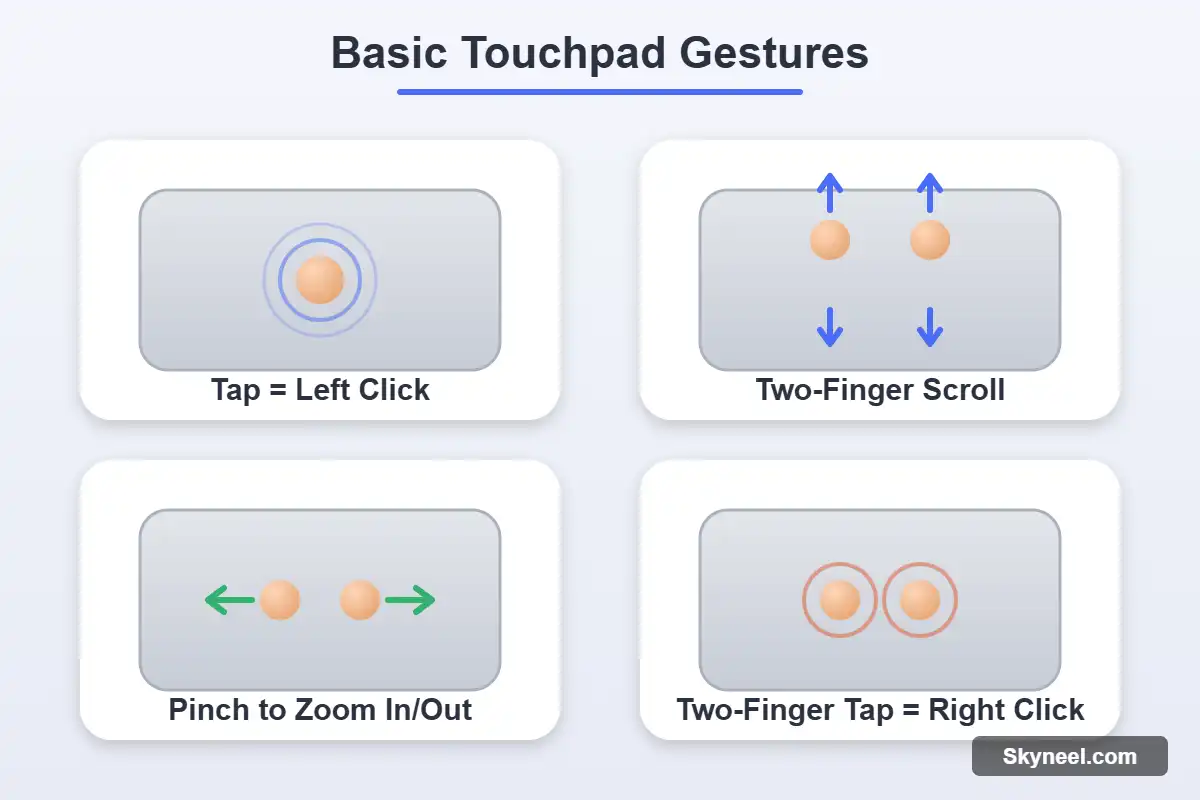
- Single tap: Acts like a left-click. Selects an item or opens a link.
- Two-finger tap: Works like a right-click. Opens the context menu.
- Two-finger scroll: Slide two fingers up or down to scroll through pages.
- Pinch to zoom: Pinch two fingers together or apart to zoom out or in.
- Click and drag: Press down and move your finger to select text or move files.
💡 Pro Tip: If tapping doesn’t register as a click, go to touchpad settings and make sure “Tap to click” is turned on.
These basic gestures are the foundation. Once you’re comfortable with them, the advanced Windows 11 and Mac gestures below will feel much easier.
⚙️ Touchpad Gestures Windows 11: The Complete List
Windows 11 uses something called a Precision Touchpad — a standardized touchpad type with smoother, more accurate gesture support. In short, it’s what lets your three- and four-finger swipes actually work reliably.
👆 Three-Finger Gestures
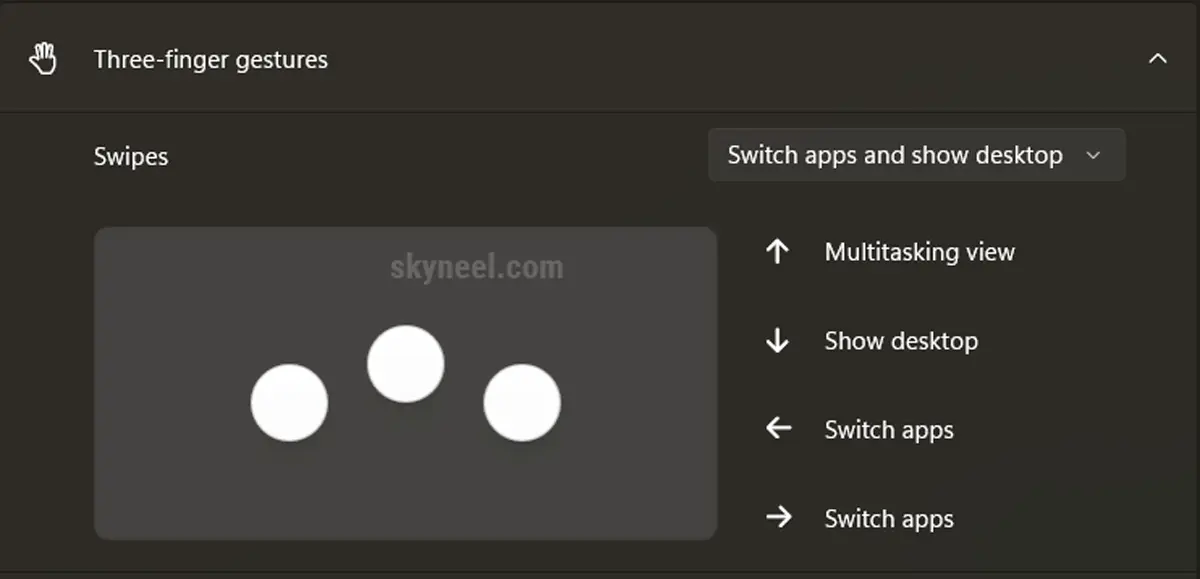
- Swipe up: Opens Task View, showing all your open windows at once.
- Swipe down: Minimizes everything and shows your desktop.
- Swipe left or right: Switches between your open apps, just like Alt + Tab.
- Tap: Opens Windows Search instantly.
✋ Four-Finger Gestures
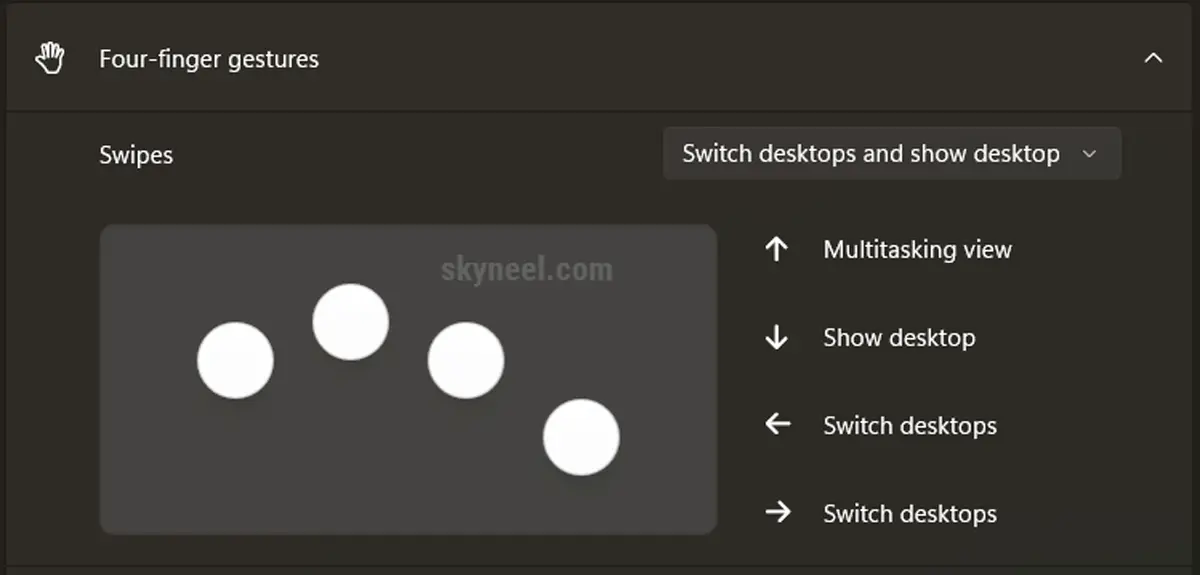
- Tap: Opens the Notification Center.
- Swipe left or right: Switches between virtual desktops.
- Swipe up or down: Same as three-finger swipe — Task View and Show Desktop.
Honestly, four-finger gestures are underused. If you juggle multiple desktops for work and personal tasks, this shortcut alone can save you dozens of clicks a day.
🛠️ How to Customize Touchpad Gestures Windows 11
Not happy with the default actions? Windows 11 lets you remap almost every gesture. Here’s how:
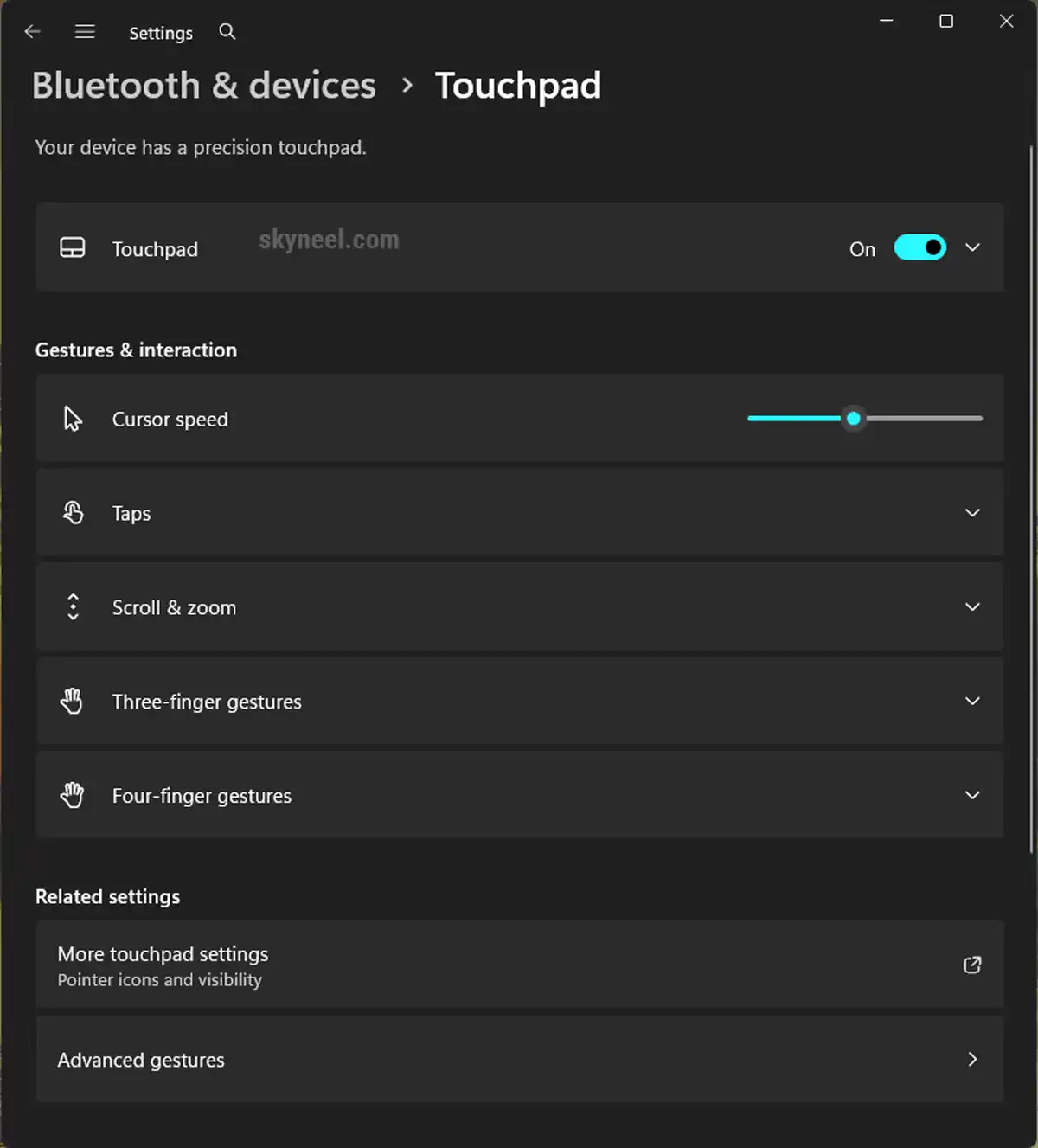
- Open Settings using
Windows + I. - Go to Bluetooth & devices and select Touchpad.
- Scroll down.
- Under three-finger or four-finger gestures, click the drop-down for the gesture you want to change.
- Choose an action, or select Custom shortcut to bind your own keyboard shortcut.
🔥 Quick Summary:
Advanced gestures let you assign your own keyboard shortcuts to any three- or four-finger swipe.
For a full list of keyboard combos you can pair with these gestures, check out our guide on Windows 11 keyboard shortcuts.
💻 Mac Trackpad Gestures Shortcuts (For Switchers)
Switching from Windows to Mac, or just curious how Apple does it? Mac trackpad gestures shortcuts feel different but are just as powerful.
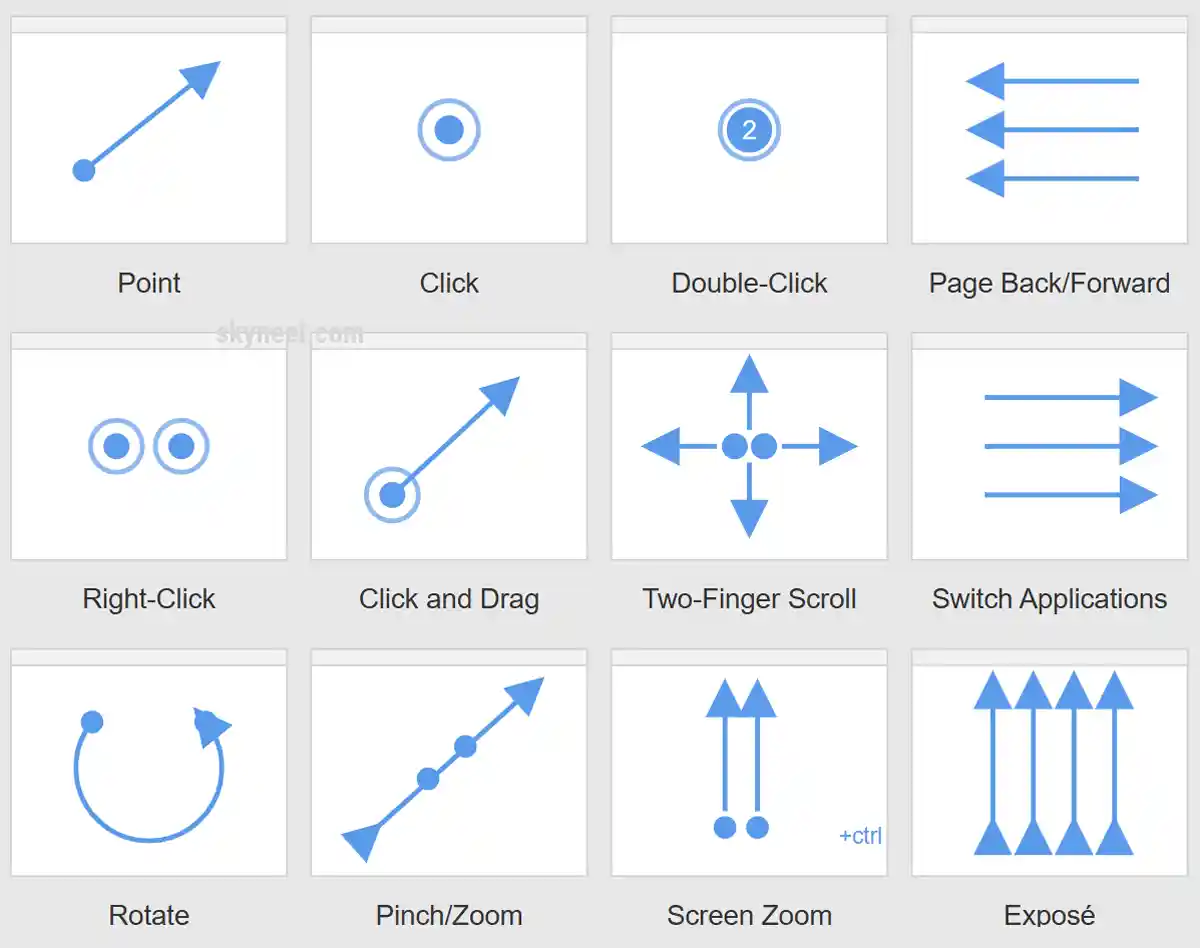
- Tap: Click.
- Two-finger swipe left/right: Navigate back and forward in browsers.
- Two-finger swipe up (Mission Control): Shows all open windows.
- Pinch with thumb and three fingers: Opens Launchpad.
- Spread with thumb and three fingers: Shows the desktop.
- Three-finger drag: Moves windows around (if enabled in Accessibility settings).
Quick tip: Mac gestures are managed under System Settings > Trackpad, split into Point & Click, Scroll & Zoom, and More Gestures tabs.
🆚 Windows vs Mac Trackpad: Side-by-Side Comparison
Here’s how the two systems stack up, gesture for gesture:
| Gesture | Windows 11 Action | Mac Action |
|---|---|---|
| Right-click | Two-finger tap | Two-finger tap (or bottom-right click) |
| Show all open windows | Three-finger swipe up (Task View) | Two-finger swipe up (Mission Control) |
| Show desktop | Three-finger swipe down | Thumb + three-finger spread |
| Switch virtual desktops | Four-finger swipe left/right | Three or four-finger swipe left/right |
| Open search | Three-finger tap | Not applicable (use Spotlight shortcut) |
| Zoom in/out | Pinch with two fingers | Pinch with two fingers |
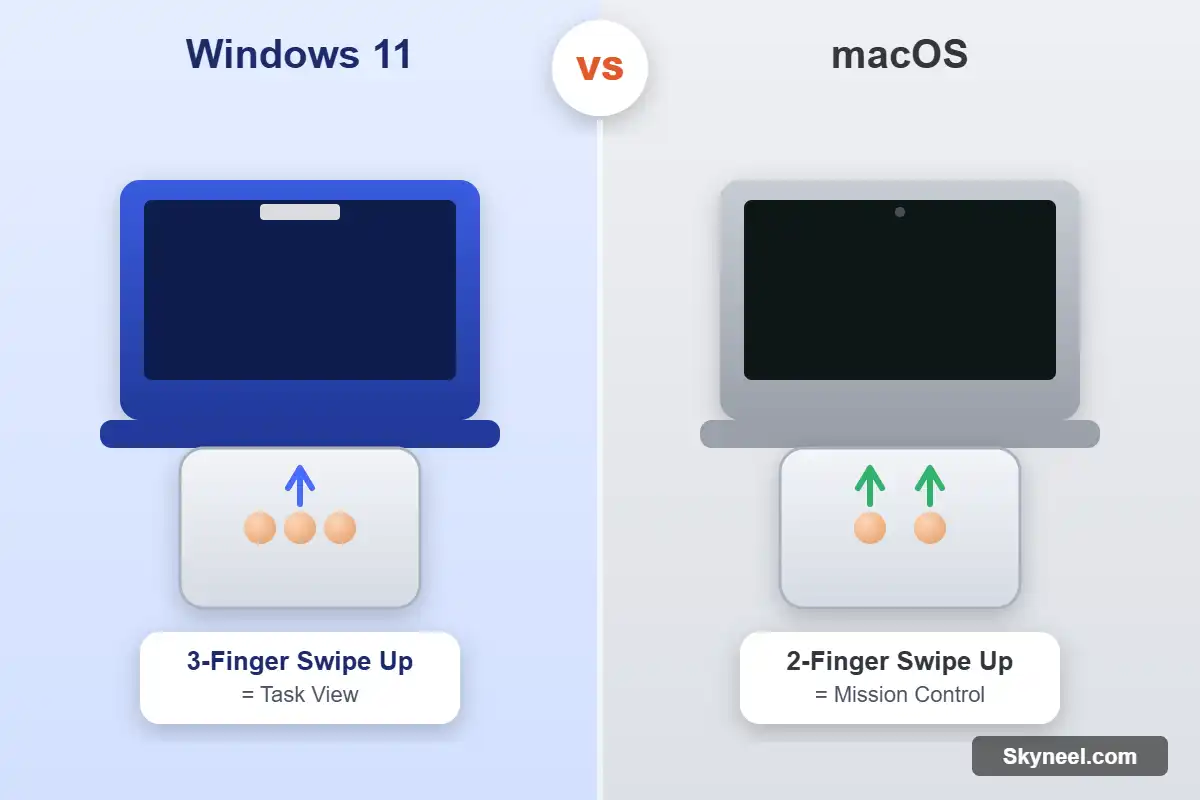
As you can see, the logic is similar — Apple just uses one fewer finger for most system gestures. Because of this, switching between the two systems is easier than most people expect.
🖥️ Brand-Specific Touchpad Tips
Different laptop brands sometimes add their own driver-level tweaks on top of Windows. Here’s what to check for popular brands.
Dell Laptop Touchpad Shortcuts List
Dell laptops often ship with the Dell Precision Touchpad app pre-installed. Open it from the Start menu to unlock extra options like:
- Adjustable palm rejection sensitivity
- Custom edge-swipe actions
- Gesture speed control, separate from Windows’ default settings
HP Laptop Touchpad Shortcuts Tips
HP laptops usually rely on the standard Windows 11 Precision Touchpad settings. However, some models include a double-tap top-left corner to disable touchpad shortcut — handy when using an external mouse.
Lenovo Laptop Touchpad Shortcuts Tricks
On ThinkPad models, the red TrackPoint nub works alongside the touchpad. Furthermore, Lenovo’s Vantage app lets you fine-tune touchpad sensitivity and disable gestures individually if they feel too sensitive.
🔧 Windows 11 Touchpad Three-Finger Swipe Not Working? Quick Fixes
If your three-finger swipe stopped working, it’s usually a driver or settings issue, not hardware damage. Try these fixes in order, starting with the simplest.
- Check the toggle: Go to Settings > Bluetooth & devices > Touchpad, and make sure the touchpad is switched on.
- Update your touchpad driver: Open Device Manager, expand “Mice and other pointing devices,” right-click your touchpad, and select Update driver.
- Confirm it’s a Precision Touchpad: In touchpad settings, scroll down — if you see “Your PC has a precision touchpad,” advanced gestures are supported. If not, gestures may be limited by hardware.
- Reset the gesture: Under Advanced gestures, set the swipe action back to its default and test again.
- Restart Windows Explorer or restart your laptop: This clears temporary glitches that block gesture recognition.
⚠️ Warning: If gestures stop working right after a Windows update, an outdated OEM driver is often the cause. Check your laptop manufacturer’s website for an updated touchpad driver.
⚙️ Precision Touchpad Settings: Getting the Most Out of Yours
Precision touchpad settings control more than gestures — they also affect cursor speed, scrolling direction, and sensitivity.
- Cursor speed: Adjust under Touchpad settings if the pointer feels too slow or too fast.
- Scrolling direction: Switch between “natural” (like a phone) and “traditional” scrolling.
- Sensitivity: Lower this if the touchpad registers accidental taps while typing.
For the complete official breakdown of every setting, Microsoft’s official touchpad settings guide is worth bookmarking.
💡 You might like: How to hide or lock personal chat on WhatsApp
👉 Don't miss: How to set Watermark on single page in MS Word
❓ Frequently Asked Questions
What are touchpad gestures on Windows 11?
Touchpad gestures are finger movements — taps, swipes, and pinches — that trigger actions like switching apps, zooming, or opening search, without needing a mouse.
How do I enable touchpad gestures on my laptop?
Go to Settings > Bluetooth & devices > Touchpad, and turn on “Three-finger gestures” and “Four-finger gestures” if they’re toggled off.
Why is my touchpad not responding to multi-finger gestures?
This usually means your touchpad driver is outdated, or your device isn’t a Precision Touchpad. Update the driver first, then check the “precision touchpad” label in settings.
Can I use custom keyboard shortcuts with touchpad gestures?
Yes. Under Advanced gestures, choose “Custom shortcut” for any three- or four-finger action and record your own key combination.
Do Mac trackpad gestures work the same as Windows touchpad gestures?
They’re similar in purpose but use different finger counts and settings menus. Refer to the comparison table above for a direct match-up.
🚀 Conclusion: Master Your Touchpad Like a Pro
Your touchpad is more powerful than you think. With the right **laptop touchpad shortcuts**, you can switch apps, manage windows, and browse faster than most mouse users.
✅ Key Takeaway:
Learn the three- and four-finger gestures first — they save the most time day to day.
Still having trouble with your pointer altogether? Check out our guide on laptop mouse not detected fix for step-by-step solutions.
Which gesture are you going to try first? Let us know in the comments below! 👇
“This guide on laptop touchpad shortcuts for Windows 11 and Mac is super helpful! I never knew there were so many gestures to improve productivity. The step‑by‑step explanations make it easy to follow, and the comparison between Windows and Mac gestures is exactly what I was looking for. Thanks for sharing such a detailed tutorial!
Glad you found it useful! Touchpad gestures are a great way to save time and work smarter without a mouse. If you want more productivity tips, check out our related posts on Windows keyboard shortcuts and Mac hacks. Stay tuned for upcoming guides too!