Hi, This is an officially approved new update of Micromax Q417 Canvas Mega 4G Stock Rom V17. And here is an easy and safe guide to install new lollipop update Micromax Q417 Canvas Mega 4G Stock Rom V17.
Micromax Q417 Canvas Mega 4G comes with 5.5-inch LCD display which provides 1280 x 720 pixels resolution. The Micromax Q417 Canvas Mega 4G is running on the Android 5.1 Android Lollipop operating system. Micromax Q417 Canvas Mega 4G powered by 1.3 GHz Quad-Core with Mediatek MT6735 Chipset.
Preparation of flash or update:
1. Take a backup of your phone by this guide.
2. Your phone battery should charge 80% minimum.
3. Make sure proper power backup of your PC.
Must Read: Remove five apps to improve smartphone battery performance
Download ROM and Tools of Micromax Q417 Canvas Mega 4G :
| File Name | Download link |
|---|---|
| Micromax Q417 Canvas Mega 4G Stock Rom V17 | Download |
| Micromax Q417 Canvas Mega 4G SP Tool V5.1616 | Download |
| Micromax Q417 Canvas Mega 4G USB Driver | Download |
How to install new lollipop update Micromax Canvas Mega 4G Stock Rom V17:
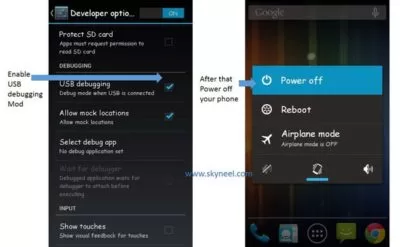
Step 1: Install drivers on your PC and Enable Developer Mode and USB Debugging on your Phone by this guide. After then switch off your phone.
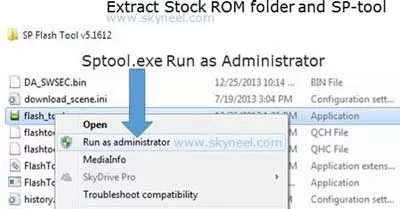
Step 2: Extract Stock ROM and SP Tool folder, where you want to save. Open the SP Tool and run Sptool.exe as Administrator.
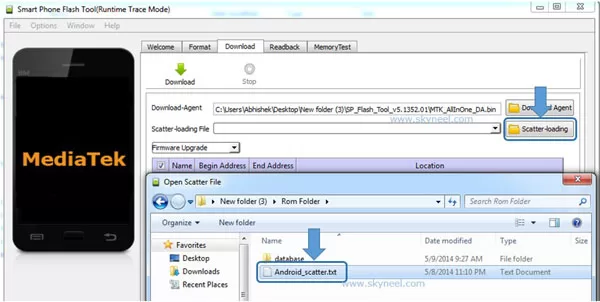
Step 3: Click on Scatter-Loading option. SP Tool ask you the location of the scatter file in your PC. You will find it in the extracted Stock ROM folder. Now go to the Rom folder and select the file “Android_scatter_emmc.txt” which is your stock Rom scatter file.
Step 4: Now Select firmware upgrade from drop-down menu then click on Download. And Connect your switch off phone with The PC via USB cable (Make sure your phone is switched off).
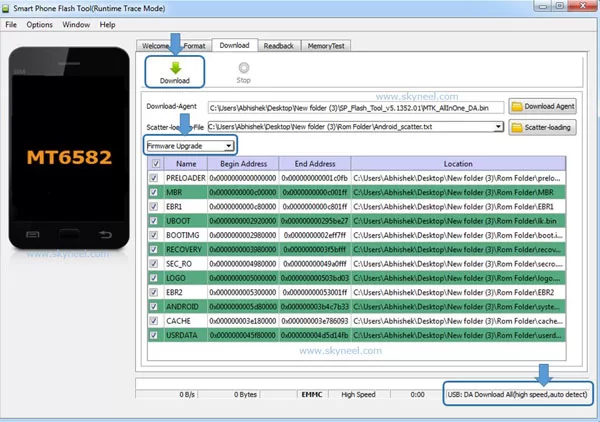
Step 5: SP Tool auto-detect your phone and process will start. If Sptool is not recognize or detect your phone then install vcom driver. After install Vcom driver reconnect your switched off phone with the PC. If you phone again not recognized by your SP Tool then try to flash via Meta mode flashing process, here is Meta-Mode flashing guide.
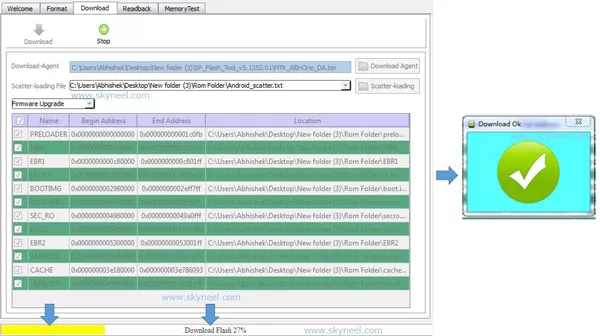
Note: Don’t interrupt this process as it can potentially brick your device. Make sure no power interruption takes place.
Step 6: Now start downloading Stock Rom in your phone by flashing. After the process complete, a green ring will appear. Now disconnect your updated Smartphone.
👉 Don't miss: Wi-Fi Speed - Working from home but not giving speed, follow these tips
🔥 Trending: 6 Great Gmail tips and tricks for Android
Must Read: How to solve hanging problem in Android phone
Tips for Micromax Q417 Canvas Mega 4G:
After install new lollipop update Micromax Canvas Mega 4G Stock Rom V17, you can root your phone because root allows you to use a maximum of your phone without any restrictions. After root you will install custom apps, Rom and custom setting in your phone. But first read Root Advantage and Disadvantage .
I hope you like this new lollipop update Micromax Canvas Mega 4G Stock Rom V17 installation guide from which you will be able to easily new lollipop update Micromax Q417 Canvas Mega 4G Stock Rom V17 without any extra efforts. If feel any problem in this guide then please use comment box. Thanks to all.
Note: I am not responsible if you make Mistakes and Bricked Devices.
is that rom having volte update for micromax q417
volte rom ?
Can it possible to convert Micromax canvas mega 4g to Volte.
Micromax canvas mega 4g LTE se Volte ho sakta hai kya?
LTE SE VOLTE KAISE HOGA BHAI
jio sim is LTE is convert new update feature jio sim volt available please air
Kaise hoga lte se volte btaye
Pls tell me my phone is canvas mega 4g how to volte update pls me
Micromax canvas mega 4g q417 volte vailabal kaise hoga
Micromax canvas mega 4g q417 mobile how to use LTE from VOLTE
Pawan Arya