This is a tutorial of root Micromax A106 Unite 2 and install CWM recovery. In this guide you will find all steps with image, therefore it is safe and easy method of root Micromax A106 and install CWM recovery.
Micromax A106 Unite 2 is great phone and must be rooted because root allows for you to use a maximum of your phone without any restrictions. After root you will install custom apps, custom Rom and custom setting in your phone. But before root you must read Root Advantage and Disadvantage by this post. Then after follow these steps to root your phone.
Preparation of flash/update:
1. Take a backup of your phone Click here.
2. Your phone battery should charge 80% minimum.
3. Read all steps then do it careful.
4. Make sure proper power backup of your PC.
Must Read: What to do if your phone got wet or fell into the water
Download:
1. MT6592 Scatter file Download
2. SP Tool V5.1352 for Unite 2 Download
3. USB Driver Download.
4. TWRP Recovery for unite 2 Download
5. CWM Recovery for unite 2 Download
6. SuperSU.zip Download
How to root Micromax A106 Unite 2 and install CWM recovery:
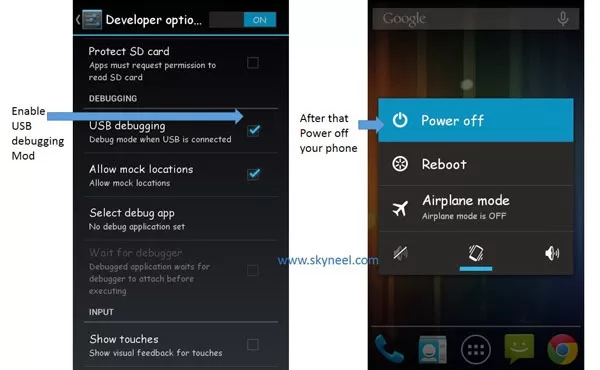
Step 1: Install drivers in your PC and Enable USB Debugging on your Phone. Go to Settings >>> Developer options >>> USB debugging check it ( If your phone have Android 4.2 or upper version then see how to enable Developer options here is guide of this Click here). After then switch off your phone.
Step 2: Download SuperSU file and copy in your phone memory card. Now Download CWM recovery and scatter file of your phone and extract these file in a folder where you want. Extract and open the SP Tool. Sptool.exe Run as Administrator.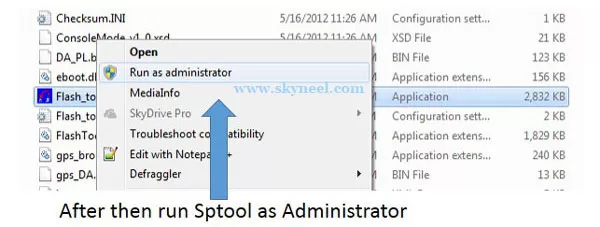
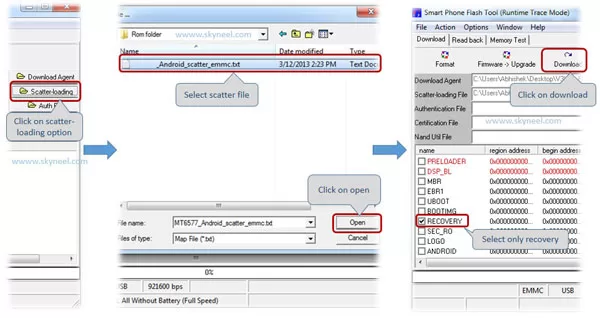
Step 3: You will see an SP tool window, now click on the scatter-Loading option in the SP tool. Then you will get the new tab of SP Tool which you ask the location of the scatter file on your PC. Now select the “Android_scatter_emmc.txt” file. See in this image.
Step 4: Now connect your switch off phone with PC via USB cable (Make sure your phone is switched off).
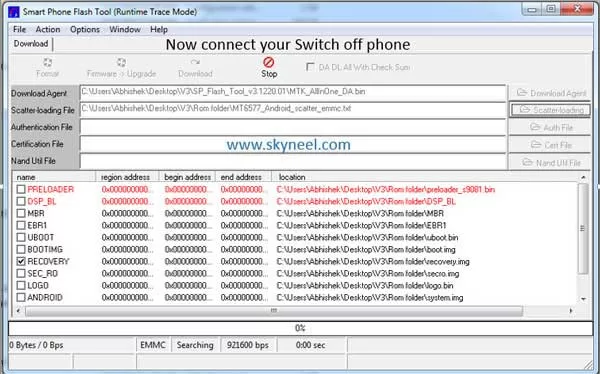
Step 5: SP Tool detect your phone and process will start. If Sptool is not recognize/detect your phone then install vcom driver read this post it will help you click here (Driver already in phone flash drive if you don’t have these drivers then install it)
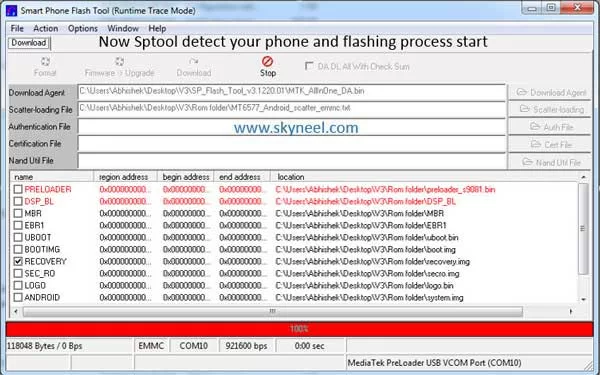
Step 6: Now start installing recovery in your phone by flashing.
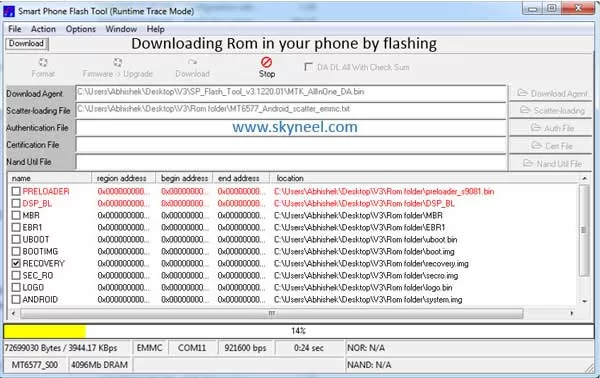
Note: – Don’t interrupt this process as it can potentially brick your device. Make sure no power interruption takes place.
Step 7: After the process complete, a green ring will appear.

Step 8: Disconnect your phone.
💡 You might like: How to divert mobile phone calls to any number
👉 Don't miss: How to use Microsoft Excel LEN function to know length of text string
Step 9: Do not start your phone. Press and hold vol. up & down + power button then select “recovery mode” (If your touch not work then use volume up and down key for menu up and down and Power button as a enter button)
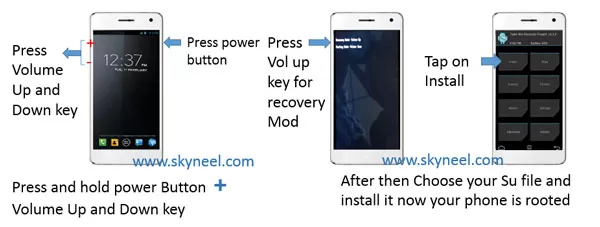
Step 10. Click on install button/ choose install and select SuperSU.zip file from your save location on your SD card and install this file. Now reboot your phone.
Must Read: Mobile Apps to get full details of unknown calls/SMS
I hope you like this root Micromax A106 Unite 2 and install CWM recovery guide from which you will be able to easily root Micromax A106 and install CWM recovery without any extra efforts. If feel any problem in this guide then please use comment box. Thanks to all.
Note: I am not responsible if you make Mistakes and Bricked Devices.
micromax a106 unite 2 1 gb after getting flash the software i am having storage problem
is this tools is sutable for my mobile if yes give me step for solution
i have rooted and extendend the memory of my micromax a106 phone. but i lost some contacts. how to retrive this? help me in this issue?
Can u plz give me a link to down load cwm recovery.img for unite 2
i hv rooted my phone is there any to install cwm without pc in unite 2 lollipop.if yes plz mail me.
Hi
Use Mobile uncle tool app
Sir i want link to download recovery.zip file for micromax unite 2 a106 4gb rom. Plzzz
Hello sir ,
Is that work in micromax lolipop ?
Nd mt scatter file, sp tool r not downloading
Hi Joy
yes This is working on Lollipop and click on download icon for Scatter file and Sp tool.
hi friends when i install custom rom on my unite2 i will get installation aborted error so how can i solve that
bro I too got the same problem do find any solution????? reply asap
hello sir ..
my micromax unite2 sim 2 network not worked how to solve this problem ????/
Hi
Is sim 1 working?
Hi sir i am trying to do flash as per the above instructions i selected the recovery image and clicked on download but its not getting download. from past 20mins it is still searching, not getting download..
Hi Sanjay
Install driver on your PC then connect your Phone.
hi sir my problem mera tab vox v105 ye root nhi ho RHA Maine har software use kar Liya h jaise kingoroot framaroot I root and more PC air. mobile ke app use Mar Libya lekin root nhi ho rha
sir plz koi solution do
use KINGROOT not KINGOROOT
Hi , do every device has unique MT65XX scatter file ? I want to flash my Micromax A111 with stock rom , but i am getting no scatter file in the roms i have got with me !! :-( … Pls help me know which MT65XX file to be downloaded for my MICROMAX CANVAS A111 …. Plss
Hi
Yes, every device has unique scatter file. Here is flashing processor of your Rom:
Download your Rom zip file, then extract and copy into the SD card (Memory Card). switch off your phone after few second press and hold Power key and Volume up key together for some time. Wait until it power on automatically. First it show a “Canvas“animation and then flashing start automatically.
Hey there!
I want to go back to stock recovery! Plz can u give me the link to download stock recovery! I really need your help! :)
Waiting for your reply!
Thanks!
Hi Harsh
Download your Stock Rom then flash your stock recovery by this guide.
here is your guide:New update of Micromax A106 Unite 2 Stock Rom v3
sir,as micromax unite 2 has updated its firmware to lollipop …this post is outdated ….the scatter file has also changed…thus the above custom recoveries cannot be instaled on the new model…..so i kindly request you to update the files post it on the site as soon as possible please…..
how to revive the images which are deleted from your SD card in Micromax unite 2
Please tell how to remove clockwork recovery and go bavk to stock recovery in unite 2
after downgrading to jeallybean my recovery option is not working.please help
Sir i have unite 2 and want to install cwm custom rom without pc i have rooted my android with kingroot app
Same problem is here in my phone MICROMAX UNITE A 106.
Please tell me how I can manage it.???
Hi Sumit
Here is a guide for your memory problem Click here
Have a good day
Sir, I also need guide for increasing the app storage for this device. Micromax is fooling with all their customers with the mobile. They have provided a very good hardware but restricted it's capabilities with software locks. The highlights of the phone are Eye-candy nothing more than that. For instance the biggest problem is 0.89GB internal phone storage, where as 5.27GB internal SD card is sitting there and Hatching Eggs for Micromax. After basic updating of the phone (just google apps, which are preinstalled and you cannot do anything about it), you are left with something like 200-250MB of Internal phone storage. Which runs out even faster than we all can think, so please some one enlighten me what is the use of creating to partition, when a user can easily buy an handsome SD card and install for music and mobile pics. I have 32GB memory card also installed on the mobile and after having around 37GB free space still running the system with 200MB internal storage only.
HI Deepak
Here is a guide for your memory problem Click here
Have a good day
Sir, please put a stock rom for this device(Micromax A106 UNITE 2) and also post a guide to increase the internal app storage of this device.
device(Micromax A106 UNITE 2)guide to increase the internal app storage of this device.